
Instructions to Reset your Network Password.
Please Note:
IF you don't remember password please call during BUSINESS HOURS (6am PST - 5pm PST) 604-677-3815 for a Password Reset
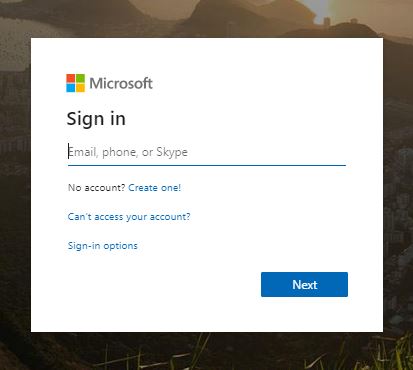
In a new browser session go to portal.office.com
Enter your Company Email Address
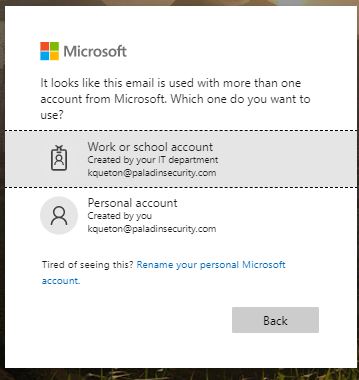
Click on "Work or school account"
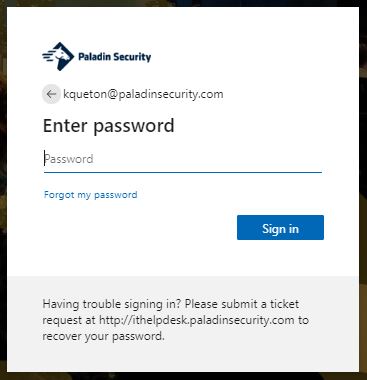
Enter your Password
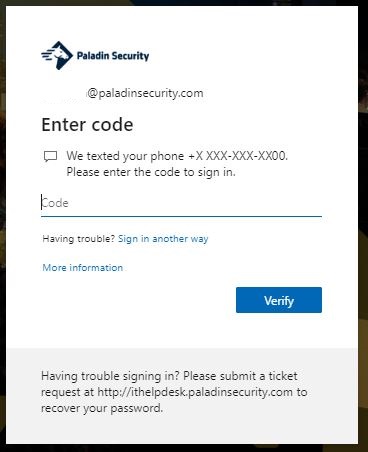
You MAY be prompted for MFA Authentication, enter your verification code
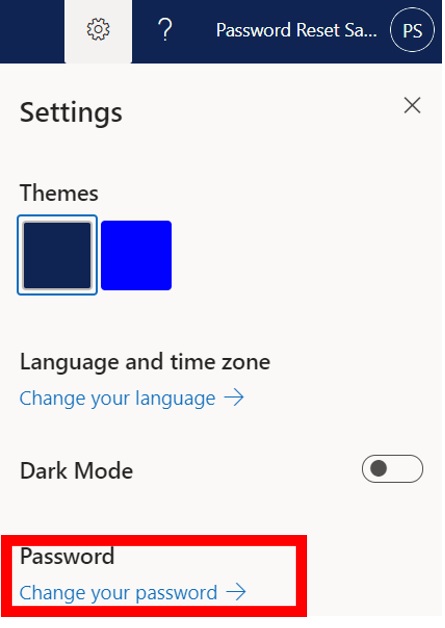
Click on the gear on the Upper Right Hand corner - and click on Change Password
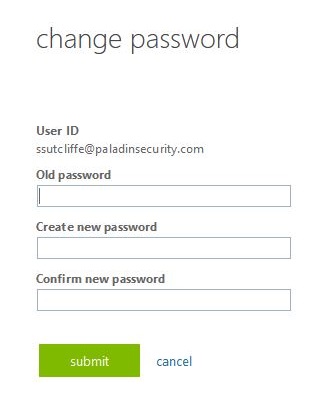
Enter your current Password then your new Password x2 then click Submit.
Password Complexity Requirements
Password MUST BE 12 characters or longer is now the MINIMUM standard.
Must contain 3 out of 4 of each of the following categories:
- English uppercase characters (A through Z)
- English lowercase characters (a through z)
- Base 10 digits (0 through 9)
- Non-alphabetic characters (for example, !, $, #, %)
Avoid the following words:
- Family related word such as kids, spouses, pets, self
- Work related word(s) such as Paladin, office address, position, customer, etc
- Words that are easy to guess or can be found in your social media account such as DoB, birth place, etc
Your password CANNOT be similar to your previous 10 passwords
DO NOT use the same password with other credentials
To create a password that are easy to remember,Passphrases or Random Multiple Word separated by dashes or spaces are ENCOURAGED
We ENCOURAGE you to use 1Password Password Generator to create a memorable password (Change the middle drop-down from Random to Memorable)